What is Anitype?
Anitype was created by a small team of avid Shotcut users. For this reason, they had Shotcut in mind during the development process. However, there’s a good chance that text animations created with Anitype will also work in other video editors.
Anitype is a web-based application for creating animated text and title sequences of all kinds — from simple character‑by‑character typewriter effects to rich, layered, highly customizable text animations.
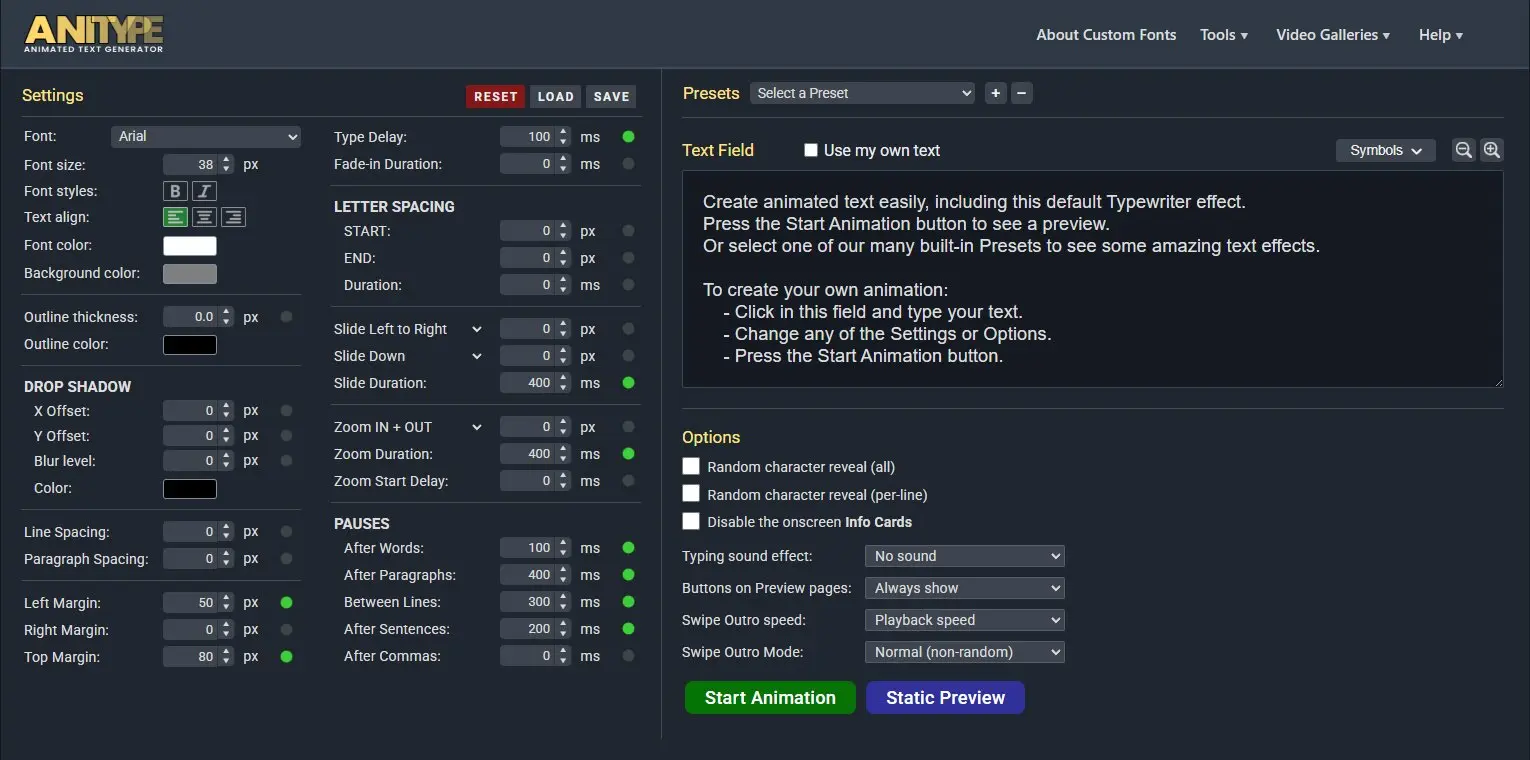
It gives you full control over how each character appears, moves, transforms, and styles itself on screen, making it easy to design anything from subtle motion to complex, eye‑catching effects.
Once you’re happy with your animation, you can turn it into a video overlay for use in your Shotcut projects, either by downloading a transparent .mov video file directly from Anitype, or by capturing it with our built-in screen‑recording tool.
You can generate animated text in many different styles like:
To give you the freedom to build truly unique text animations, Anitype offers a wide range of user-configurable settings and options. You can mix and match these controls to shape motion, timing, style, and visual effects, allowing you to create an almost limitless variety of animated text sequences.
For example:
- Font selection: Use any of the 1900+ Google Fonts, or the ones installed on your computer.
- Add an outline to the text, and/or a drop shadow effect.
- Change the speed of typing.
- Apply a fade-in effect to the characters.
- Add one of many available synchronized sounds effects included in the app.
-
Adjust the space between characters.
It can be animated to expand or shrink lines of text.
-
Apply a horizontal and/or a vertical slide animation to the text.
- Apply zoom effects to the text such as Zoom IN + OUT, Zoom IN, or Zoom OUT.
- Make characters appear randomly.
- Set delays after words, paragraphs, lines, sentences, or after commas, colons and semicolons.
- Add an outro to your animation: The ◄ PLAY (F) button on the Preview pages allows you to include a reversed version of an animation that you can add as an outro in your Shotcut project.
Once your animated text is created, you can easily add it as an overlay in any of your Shotcut projects.
Note: You can use your Anitype animations in most video‑editing software. However, some parts of these instructions include tips that are specific to Shotcut.
The process of creating a text animation has 3 core steps:
- Create your animated text in the Anitype app.
-
Convert the animation to video. Your options are either to:
- Download it directly from Anitype.
- Record it with our built-in screen recording tool (or any other screen recording app).
- Import the downloaded file or the screen recorded file into your Shotcut project.
See the Convert Animation to Video section of these instructions for more details.