Read this page!
If you're not the type to read long, boring instruction manuals, we totally get it.
But we strongly suggest that you at least read this quick guide. It will give you the basics you need to understand and use Anitype effectively.
Set to 0 buttons
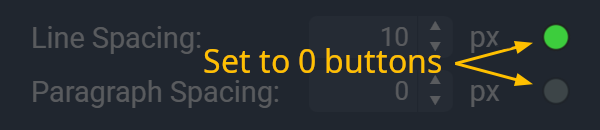
In the Settings panel, most settings includes a Set to 0 button.
These buttons do not reset a setting to its default value — they simply set the value to zero, which effectively disables that setting.
Means the setting is currently at 0.
Means the setting value is anything other than 0 (including negative values).
Clicking the button brings the setting value to 0.
This feature provides a quick way to turn a setting off, and also gives you an at‑a‑glance view of which settings are currently in use.
Spinner Controls
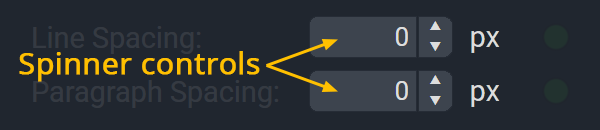
Most of the settings on the main page use numeric input fields (spinners) to adjust their values.
You can adjust the value in an input field:
-
Manually:
Click inside the input field and type a value. -
Arrows:
Use the UP and DOWN arrows. -
Mouse wheel:
Hover the input field with the mouse cursor and use the mouse wheel to increase/decrease the value.
Useful hint: Pressing & holding Ctrl while using the mouse wheel will multiply the step values by 10.
Info Cards
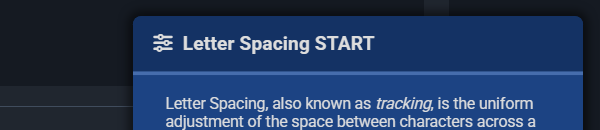
Many elements on the main Anitype page will display an info card when hovered with the mouse cursor.
They are a lazy way for new users to learn and understand the basics of the Anitype interface.
If you find them annoying, or not longer need them, you can disable and enable the Info Cards in the Options section.
Symbols
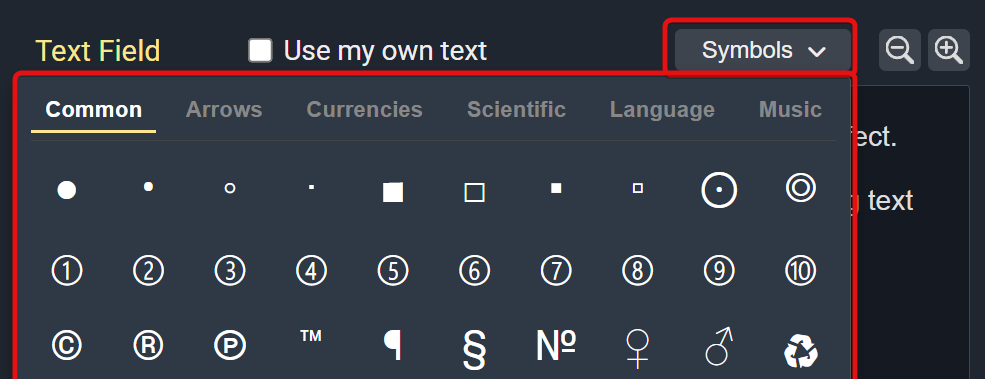
The Symbols dropdown is used to insert specialized characters that are often missing from standard keyboards.
- In the Text Field, place the cursor where you want to insert a symbol.
- Open the Symbols dropdown.
- Choose a category.
- Click one of the symbols to insert it at the cursor position.
If the symbol you need is not included in our built-in selection, you can try using the ones from your system's emoji & symbols app:
- On Windows: Windows key + ;
- On Mac: Control + Command + Space
- On Linux (GNOME): Super + . or Super + ;
You can also try symbols and emojis found on websites like coolsymbol.com for example.
Please note that some symbols might not work with certain fonts.
They will be displayed correctly in the Text Field, but not on the preview pages and in the downloaded MOV file where a replacement symbol will be used instead (such as �).